Шэньчжэньская компания «Showin Stage Lighting»

Bidirectional ARTNET‑8DMX Converter Buying Guide | 8‑Port ArtNet DMX512 Lighting Network Node

Bidirectional ARTNET‑8DMX Converter: Complete Buyer’s Guide for Lighting Designers & Event Rental Operators
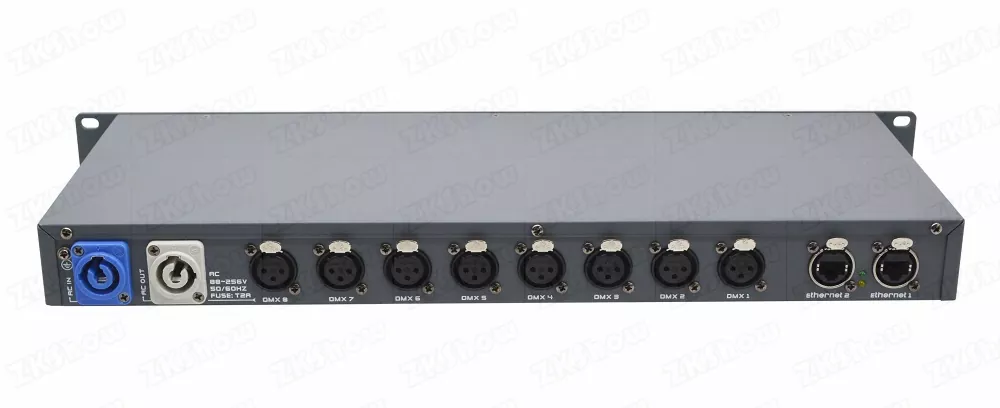
Running stable lighting networks for live concerts, broadcast TV, corporate events, and fixed venue installations means balancing signal reliability, flexible configuration, and field‑hardened hardware. A high‑performance 8 Port ArtNet DMX Node such as the bidirectional ARTNET‑8DMX converter bridges Ethernet‑based ArtNet traffic and classic DMX512/1990 signals, giving lighting teams massive channel expansion up to 4096 channels in one rack‑mount unit.
For event rental houses, lighting designers, and system integrators, picking the right ArtNet Network Lighting Converter directly impacts show success, on‑site troubleshooting time, and long‑term return‑on‑investment. This buying guide walks you through real‑world market pain points, critical hardware selection criteria, control mode breakdown, common field mistakes, suitable applications, maintenance advice, and frequently asked questions for your next ArtNet DMX512 Converter deployment.
Real‑World Pain Points of Conventional Lighting Network Hardware
Lighting crews face recurring frustrations when deploying multi‑universe DMX systems, especially on fast‑turnaround rental jobs and complex fixed installations. Many cheap DMX512 signal converter units introduce avoidable risks for professional productions.
Unidirectional‑Only Nodes Limit System Flexibility
Many budget ArtNet‑DMX gateways only support ArtNet‑to‑DMX output. If you need to feed physical DMX signal back into your lighting network — such as merging backup console DMX outputs or capturing local DMX sensor data — you must purchase separate encoder hardware. This adds extra rack space, more cables, higher rental inventory costs, and extra points‑of‑failure on‑site. A true Bidirectional ARTNET‑8DMX Converter lets every port switch between input, output or disabled mode, removing that hardware overhead.
Lack of Full Galvanic Isolation Triggers Show‑Stopping Signal Issues
Ground loops are one of the most frequent causes of DMX flicker, random fixture misbehavior, and even hardware burnout on multi‑power‑source venues. Low‑cost nodes skip full electrical isolation across DMX ports. When stage power distributes across different mains phases, ground potential differences leak into signal lines, causing intermittent glitches that are notoriously hard to diagnose under live‑show pressure. Rental companies absorb high repair costs when non‑isolated converters get damaged on client sites.
Cumbersome Configuration Without Dual Control Interfaces
Many entry‑level ArtNet DMX512 converter models only offer web‑browser configuration. If your laptop fails or network settings mismatch on‑site, you cannot adjust universe mapping, port direction, or timing parameters. Having only web‑UI forces you to spend precious show‑prep time debugging network issues before you can touch lighting parameters. Professional‑grade 8‑port nodes should offer both local physical panel operation and remote web‑server access for maximum resilience.
Poor Scalability for Large‑Channel Productions
Traditional DMX daisy‑chains are limited by cable distance and single‑universe constraints. Expanding channel count often requires stacking multiple small 2‑port or 4‑port nodes. More physical devices mean more rack units consumed, extra power adapters, and complex IP‑address bookkeeping for rental inventories. An 8‑universe rack‑mount ArtNet network lighting converter consolidates up to 8 DMX512 universes within a compact 1U form factor, simplifying system build‑out for broadcast, festivals and theatre shows.
Core Hardware Buying Metrics for a Professional 8‑Port ArtNet DMX Node
When you compare Bidirectional ARTNET‑8DMX Converter options, evaluate these practical criteria from a rental‑house and system‑integrator perspective, not just marketing‑sheet specs.
Bidirectional Port Capability & Per‑Port Galvanic Isolation
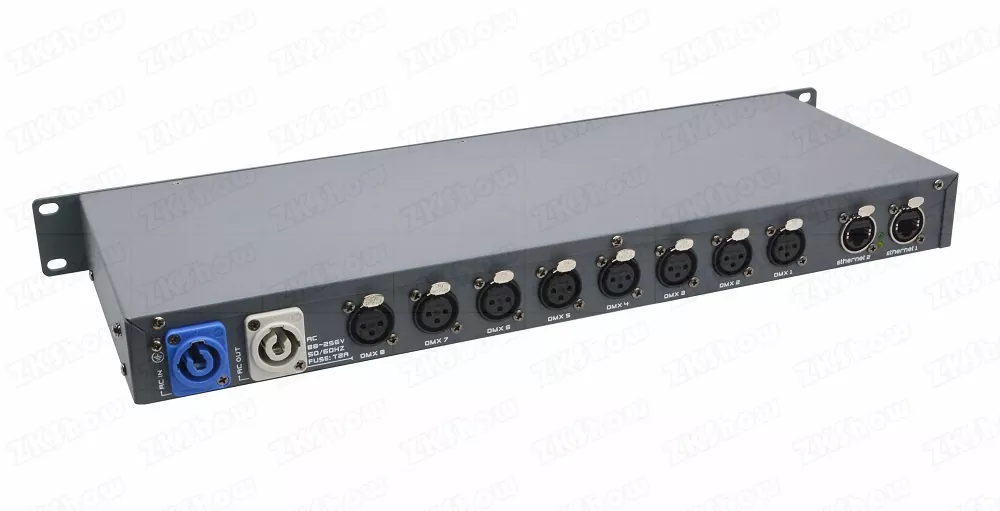
Confirm every physical DMX port can independently toggle between Input, Output, or Disable mode. Avoid devices hard‑locked as 8‑output only. Full 100% electrical isolation between all DMX I/O ports is non‑negotiable for touring rental gear: it suppresses ground‑loop noise and protects both the converter and connected lighting fixtures from voltage spikes across venue power systems. Look for genuine Neutrik 3‑pin XLR connectors, which stand up to repeated rigging, de‑rigging and rough transport in rental fleets.
Dual Configuration: Local TFT Panel + Embedded Web Server
Field‑proven nodes should give you two independent ways to configure settings:
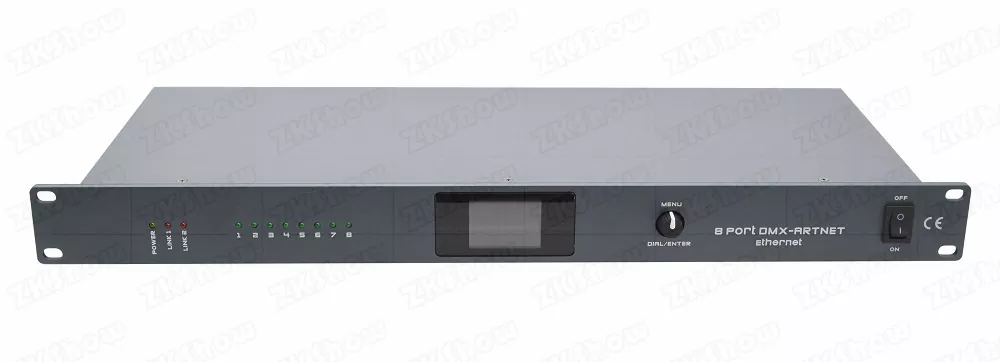
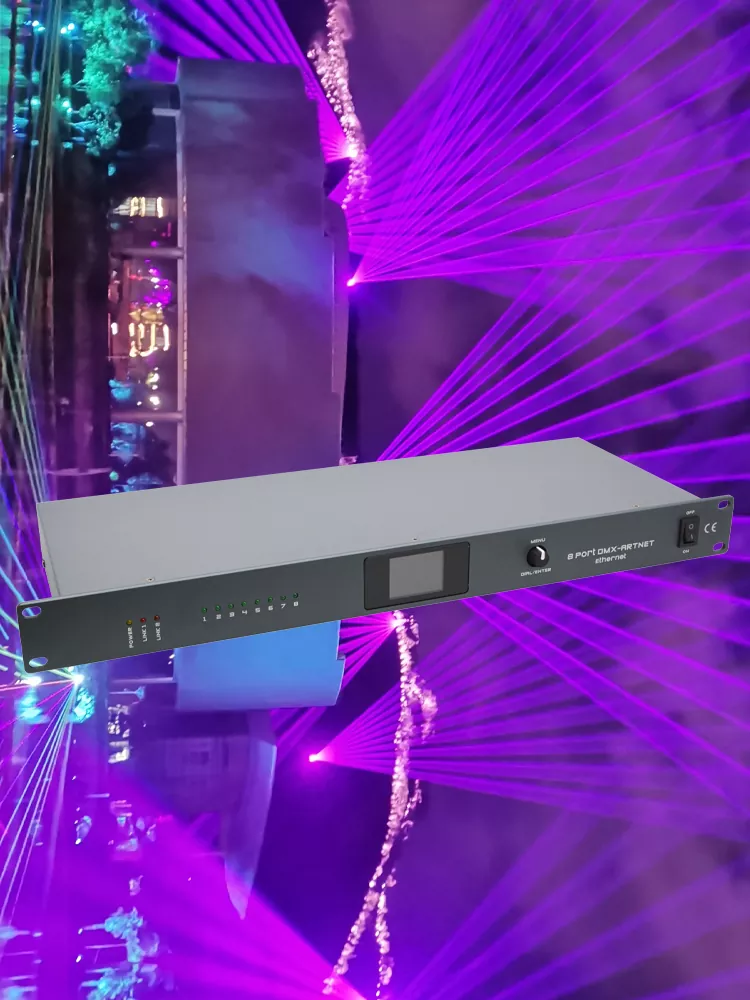
- Local TFT colour screen with menu encoder wheel: Adjust universe assignments, IP modes, port direction, screen saver, or restore factory defaults without a laptop. Visible per‑port LED status indicators give instant visual feedback of DMX activity during rig‑checks.
- Built‑in web server: Access from any computer on the same lighting subnet to batch‑edit network addresses, subnet masks, universe mapping, DMX Break/MAB timing parameters and admin passwords via browser. Default login credentials allow fast commissioning; password‑protection prevents accidental tampering by third‑party site staff.
Network Design & Rack‑Mount Form Factor
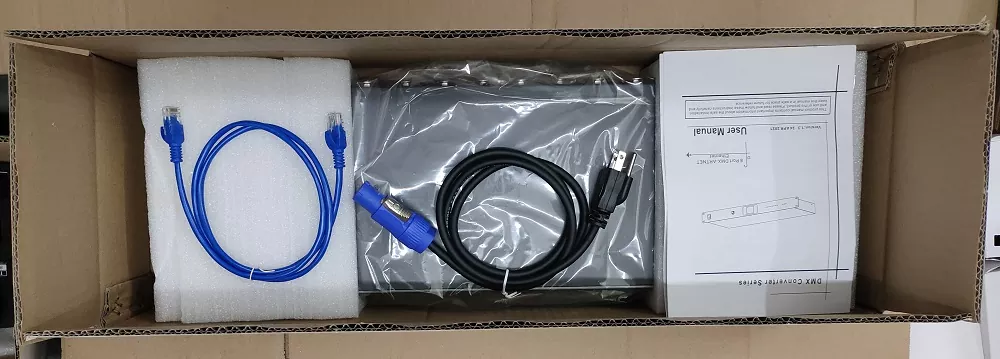
Dual RJ45 Ethernet ports operating in internal‑switch mode simplify multi‑unit daisy‑chaining. Instead of running every converter back individually to the main lighting switch, you can cascade nodes, reducing total network cabling work on‑site. For rental and fixed install workflows, standard 19‑inch 1U rack‑mount form factor fits standard flight‑cases and equipment racks. Wide‑range universal AC power input (AC88‑256V) ensures global compatibility across different regional mains voltages, critical for touring and international event work.
Protocol Compliance & Scalability
Verify strict compliance with official ArtNet and DMX512‑1990 standards. The converter should support the full ArtNet addressing scheme: network address range 0‑127, subnet address range 0‑15, universe assignment per physical port 0‑15. This enables large‑scale system expansion: multiple chained converters can handle up to 32768 ArtNet universes total for complex broadcast or festival rigs. Check that timing parameters DMX‑Break and DMX‑MAB are user‑adjustable, to achieve compatibility with older or timing‑sensitive lighting fixtures.
Control Modes Explained for ARTNET‑8DMX Converter
Understanding IP configuration modes and port operation helps you integrate this ArtNet DMX512 Converter with major lighting consoles, including GrandMA series, Avolites, and PC‑based lighting software.
Three IP Configuration Modes
The bidirectional ARTNET‑8DMX converter supports three selectable IP modes, accessible from both local menu and web UI:
- 2XX Mode: Optimized for MA‑series lighting consoles. Uses IP range starting with “2.x.x.x”, subnet mask fixed at
255.0.0.0. This is factory default for fast out‑of‑the‑box MA console integration. Your PC must be manually assigned an IP in the same subnet for web‑UI access. - 10XX Mode: Also designed for MA‑ecosystem workflows, using
10.x.x.xaddressing scheme, subnet mask255.0.0.0. - Custom (CUSTOM) IP Mode: For general‑purpose integration. Manually set static IP address, subnet mask and gateway. Commonly set to
192.168.1.xrange with subnet mask255.255.255.0for standard local area networks.
Important note: When switching IP modes, your converter’s IP will change. You must re‑adjust your laptop’s network settings and enter the new IP in your web browser to regain web‑server access. Always use static IP addressing for lighting hardware; DHCP is strongly discouraged for live‑show environments, as automatic IP reassignment can break patching mid‑performance.
Per‑Port Operating Modes
Each of the 8 DMX ports can be independently configured:
- Output: Convert incoming ArtNet network data into physical DMX512 signal to drive lighting fixtures (factory default setting for all ports).
- Input: Take physical DMX512 signal from external console or DMX source and encapsulate it into outgoing ArtNet packets back onto your lighting Ethernet network. This is the bidirectional feature that separates premium nodes from basic unidirectional converters.
- Disable: Turn the port fully off for unused channels to eliminate signal noise and simplify status read‑out on the TFT screen.
Each port is assigned an ArtNet universe number, mapping incoming or outgoing DMX traffic to the selected universe on your ArtNet lighting network. Default factory mapping assigns port 1 → universe 0, port 2 → universe 1 continuing up through port 8 → universe 7; operators can freely remap every port to any universe as project requirements demand.
Common On‑Site Pitfalls & How to Avoid Them
Even high‑quality 8 Port ArtNet DMX Node will misbehave if deployed incorrectly. Below are frequent mistakes seen in rental and integration projects.
- Mismatched Subnet Between PC and Converter
Many new operators forget to reconfigure their laptop IPv4 settings. If your converter runs in default 2XX mode (2.x.x.x), your PC must also have an IP within the2.x.x.xsubnet with subnet mask255.0.0.0. If your PC remains set to192.168.x.x, you cannot open the web configuration page, even with a physical link light showing on Ethernet ports. Always cross‑reference IP and subnet values before attempting web‑UI login. - Ignoring DMX Timing Parameters for Legacy Fixtures
Most modern fixtures work fine with factory‑default DMX Break 92 µs and DMX‑MAB 12 µs. However, older dimmers and moving‑head fixtures may require adjusted timing values. If you observe flickering or inconsistent fixture response, tune Break (range 92‑999 µs) and MAB (range 12‑999 µs) settings either on‑device via the menu wheel or inside the web‑server DMX‑settings tab. - Overlooking Port‑Direction Mis‑configuration
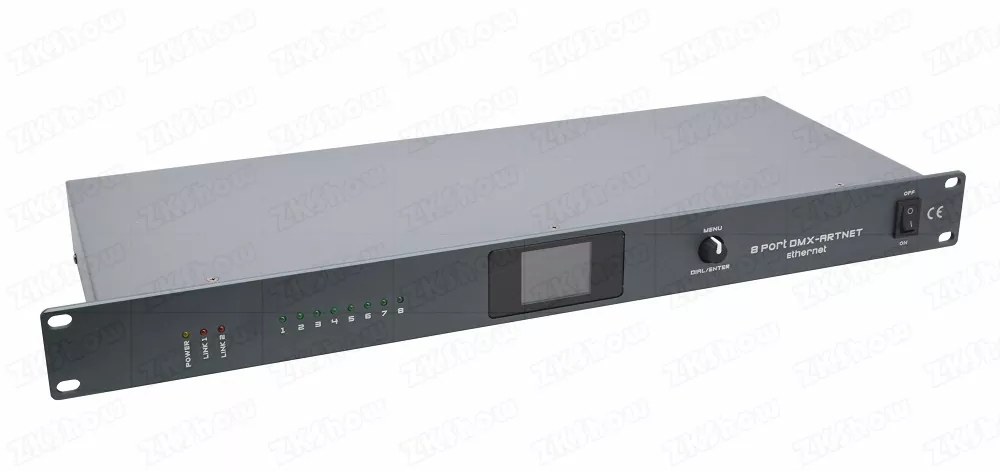
A very common troubleshooting trap: trying to send ArtNet data to a port accidentally set to Input mode, or expecting DMX input signal when port is set to Output. Always double‑check port direction setting, visible on the home TFT screen (Ofor Output,Ifor Input,Xfor disabled) before fault‑finding elsewhere. - Using Shared Office Network for Lighting Control
Never run ArtNet lighting traffic over general‑purpose venue Wi‑Fi or shared office LAN. Multicast ArtNet traffic can flood shared networks, causing packet loss, lag and lighting drop‑outs. Deploy a dedicated lighting Ethernet network or VLAN for all ArtNet‑DMX hardware. Use Cat5e or better shielded Ethernet cables for all node connections. - Modifying Web‑UI Password Without Documentation
If you change the default admin web‑UI password, record it securely. Lost passwords require restoring the unit back to factory defaults, erasing all project‑specific port and network configurations, costing critical on‑site time.
Ideal Application Scenarios for Bidirectional ARTNET‑8DMX Converter
This ArtNet Network Lighting Converter is built for professional production environments:
- Live Stage & Concert Tours: 1U rack‑mount size fits touring flight‑case racks; bidirectional ports integrate backup consoles into ArtNet network; galvanic isolation mitigates ground‑loop risk on multi‑power festival sites.
- Broadcast & Television Studios: Stable low‑latency signal for TV recorded shows, where lighting cues must synchronise tightly with camera workflows.
- Corporate Events & Award Shows: Fast re‑configurable rental inventory; switch port direction to adapt quickly between different client lighting console set‑ups.
- Nightclub & Fixed Venue Installations: High‑density 8‑universe output consolidates multi‑zone lighting control in club installations. Dual network ports simplify structured cabling architecture.
- Theatre & Performing‑Arts Venues: Capture DMX from local stage‑floor controllers as ArtNet input while driving multiple fixture zones over DMX outputs from the main lighting desk.
Practical Maintenance Tips for Rental & Integration Fleets
Maximise service life and minimise rental‑unit failure rates with these simple practices:
- Pre‑show bench testing: Before dispatching units for rental jobs, power each converter, verify TFT screen operation, test every DMX port in both Input and Output mode, confirm LED indicators respond to signal traffic.
- Physical care: Keep the unit dry. Avoid liquid spills, heavy impact or vibration during transport. Store inside flight‑cases to protect XLR and RJ45 connectors. Never attempt to open or modify the hardware enclosure, as this voids safety compliance and risks hardware damage.
- Configuration best practice: Document IP scheme, network/subnet addresses and port‑universe mapping for every project. Save notes for each rental job, so technicians can rapidly reconstruct settings in case of accidental reset.
- Screen‑saver management: Enable automatic screen saver (adjustable timeout 3‑255 seconds) to extend TFT display lifespan for permanent installations.
- Factory reset workflow: When preparing units for return to rental stock, use local menu or web‑UI restore‑factory‑settings function to wipe custom client configurations before next deployment.
Frequently Asked Questions (FAQs)
What makes a bidirectional ArtNet‑8DMX converter different from regular 8‑output‑only nodes?
Every physical DMX port can be set to Input mode to convert DMX512 signals back into ArtNet network packets, not only convert ArtNet to DMX output. This lets you integrate legacy DMX hardware, backup consoles or local stage controllers into your ArtNet lighting network without buying separate encoder devices.
Can I use this converter with GrandMA lighting consoles?
Yes. The 2XX and 10XX IP modes are purpose‑built for MA‑series consoles. Set your converter to 2XX IP mode, match your PC or console network settings to the same subnet and configure universe mapping via local menu or web server.
Why can’t I access the web configuration page after changing IP mode?
Changing IP mode alters the converter’s IP address. You need to adjust your computer’s IPv4 address and subnet mask to match the new converter subnet, then enter the updated IP address into your web‑browser address bar.
How many total DMX channels can one ARTNET‑8DMX converter handle?
8 independent DMX512 universes deliver up to 4096 channels in one rack‑mount unit. Multiple units can be networked together to scale far higher channel counts for large‑scale productions.
What should I do if I forget my web‑UI login password?
Perform a factory reset via the unit’s local MENU encoder on the front panel. This resets web‑UI password back to default admin, but erases all custom network and port configuration settings. Document passwords for every project to avoid this scenario.
Ready‑to‑Scale Your Lighting Inventory?
If you are an event rental company, lighting designer or system integrator searching for robust Bidirectional ARTNET‑8DMX Converter, reliable ArtNet DMX512 Converter, or high‑density 8 Port ArtNet DMX Node for touring, broadcast or permanent venue installations — get in touch with our sales engineering team today.
We support bulk B2B orders, offer technical datasheets, configuration documentation and pre‑sales technical consultation to verify compatibility with your existing lighting consoles and network infrastructure. Fill out our contact form to request quotation, product specifications or sample unit evaluation for your upcoming projects.
#Bidirectional ARTNET‑8DMX Converter #ArtNet DMX512 Converter #8 Port ArtNet DMX Node #ArtNet Network Lighting Converter #DMX512 Signal Converter #Stage Lighting Network Equipment #MA Console Compatible ArtNet Node #Professional Lighting Signal Transmission Device #Studio Lighting Control System #Event Lighting Network Solution #Stage Rental Lighting Converter